Back
How to add a domain
Having a domain name within the servers.com infrastructure simplifies your experience with our services. You can associate your domain to related products and delegate some routine operations to our automation.
To add your domain in the customer portal, follow these steps:
- Log in to the customer portal and navigate to Networks → DNS from the left-hand menu
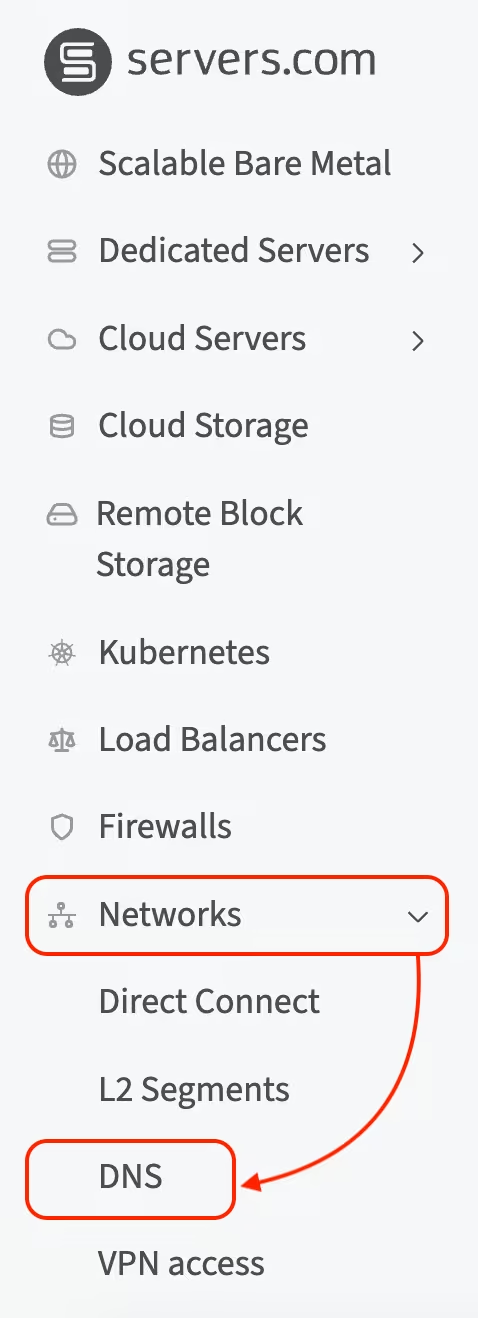
- On the DNS management page, click Add domain
- In the modal window, enter your domain name and email address
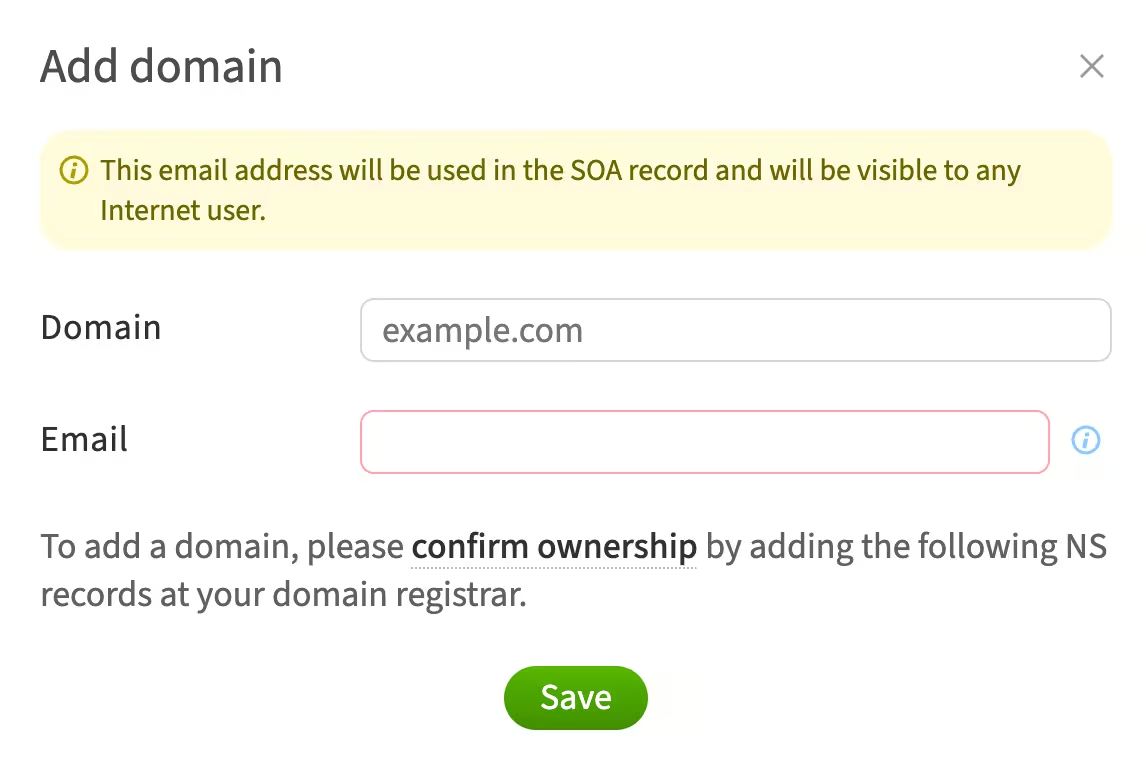
- Follow the confirm ownership link for more details
To add a domain, you need to confirm ownership of the domain. This step is mandatory, and you can choose one of the following options:
- Delegate the domain. See the How to delegate a domain article
- Add a TXT record with a unique identifier at your domain registrar
Once domain ownership is confirmed, you can proceed with adding the domain.
Share


Suggested Articles

Products and services
- Cloud servers
- Cloud server volumes
- DNS
- Cloud storage
- Customer portal
- Dedicated servers
- Firewall
- Forex VPS
- How it works
- Kubernetes clusters
- L2 segments
- Load balancing
- Remote block storage
- Scalable bare metal
- VPN to GPN

Administration

Data centers

Accounts, data and support