



How to manage network
Introduction
Configuring the network infrastructure for dedicated servers is a crucial step in ensuring the reliability, security, and performance of your information systems.
In this article, we will cover the key aspects of configuration, including the use of public and private networks, uplink configuration, the application of disaggregation to optimize traffic, and the use of alias IPs for flexible network address management. These elements will help you create an efficient and scalable network infrastructure that meets your business needs.
Understanding public and private networks
Each server is equipped with at least two NICs (Network Interface Cards). One port on each NIC is used for a private network connection, and the other is for a public network connection.
Combining public and private networks offers several advantages:
-
Flexibility and scalability: using both types of networks allows for balancing between accessibility and security, which is especially important for hybrid and cloud solutions
-
Enhanced security: data that should not be accessible from the internet can be transmitted through private networks, reducing the risk of information leakage
-
Load separation: public networks can handle user requests, while private networks manage internal operations, improving overall system performance and reliability
Thus, public and private networks play key roles in the architecture of dedicated servers, ensuring the availability and security of data and services.
Public networks
Public networks are used for interaction between servers and external devices or users via the internet. They are typically used for hosting websites, web applications, APIs, email servers, and other services accessible to users over the internet.
Key concepts of public networks include:
-
IP addresses: public IP addresses are unique and reachable externally
-
Security: public networks employ security measures such as firewalls, VPNs, and other technologies to protect against unauthorized access and cyber threats
-
Internet accessibility: servers connected to public networks are accessible from anywhere via the internet
Private networks
Private networks are used for internal communication between servers and devices, ensuring secure data transfer for tasks like server-to-server communication, databases, and backups, bypassing the public internet.
Key concepts of private networks include:
-
IP addresses: devices use private IP addresses that are not routed through the Internet and are not accessible from the outside
-
Security: private networks provide a high level of security as access is restricted by internal rules and security policies
-
Direct connect: private networks enable direct connect, providing a direct, fast, and reliable connection
-
L2 segmentation: private networks enable L2 segmentation to isolate traffic and improve management through the use of virtual local area networks (VLANs)
Network configuration
In the customer portal, you can view and manage the current network configurations. It is accessible through the following steps:
-
Open the customer portal and navigate to Dedicated Servers → Manage
-
Select the server you need to configure the networks for and scroll down to the Networks section
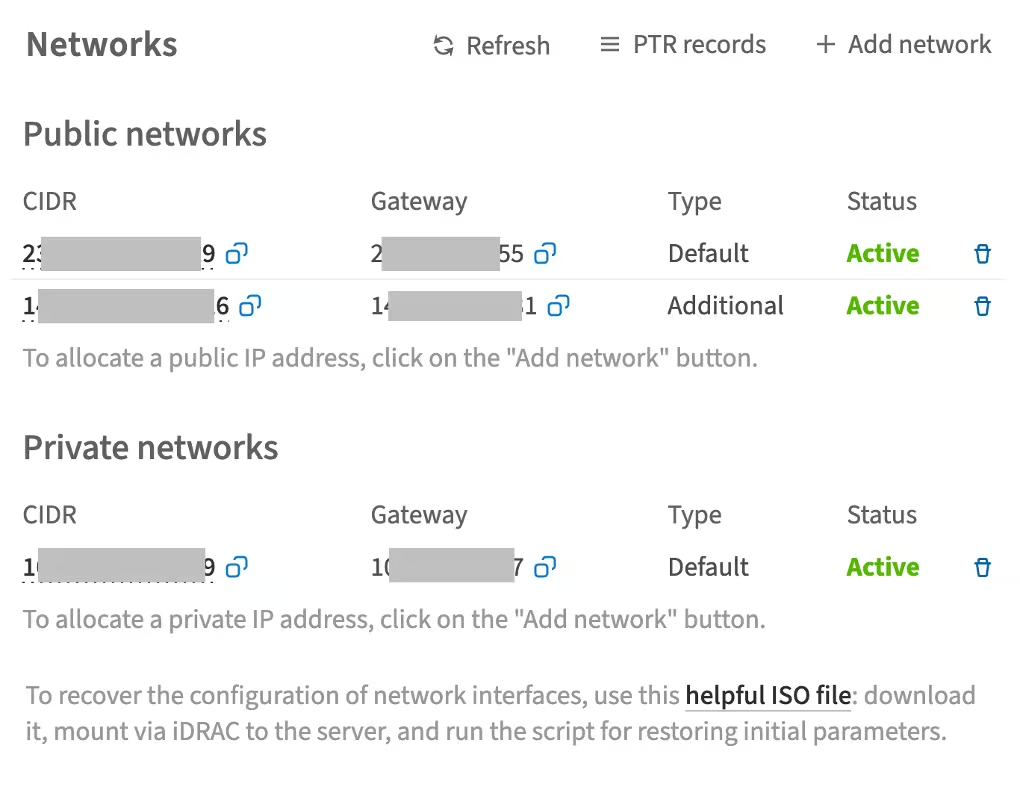
In this section, you can manage networks, determine their status, and see which IP addresses belong to which networks.
The Default and Additional network types differ in that the default network is configured automatically during the OS installation, while each additional network must be configured manually.
How to add a network
To add a network:
-
In the Networks section, click Add network
-
In the window that opens, specify the network type, its size, and the number of IP addresses
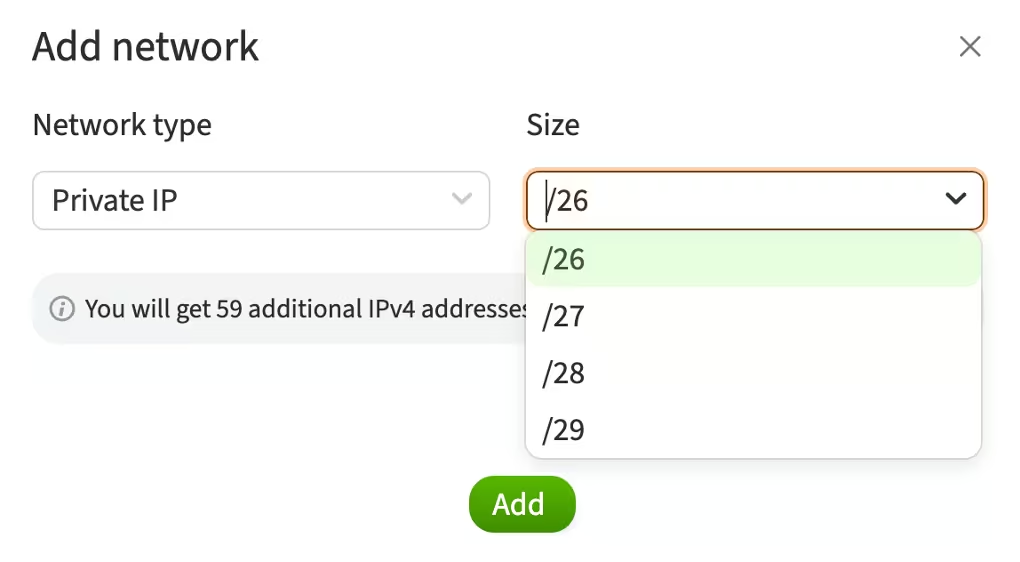
Size
The available network sizes depend on the type of location and the network architecture at that location. The network size determines the number of available IP addresses in a subnet. Subnets are used to divide larger networks into smaller segments, allowing for easier management of network resources and increased security. CIDR (Classless Inter-Domain Routing) notation is used to designate blocks of IP addresses and subnet masks, formatted as: IP address / number of bits in the subnet mask.
For example, a /29 prefix indicates that out of the 32 bits of the subnet, 29 bits are used for the network part of the address, leaving 3 bits for hosts. This means the subnet can contain 8 IP addresses:
-
5 can be assigned to user devices and our infrastructure devices
-
1 is reserved for the network address
-
1 is reserved for the gateway on the switch
-
1 is reserved for the broadcast address
Suppose the network IP address is 213.3.172.48, and the network size is /29. In this case, the IP addresses will be allocated as follows:
-
213.3.172.48 – reserved for the network
-
213.3.172.49 – address of the first (r1) switch in the switch group (rbridge1)
-
213.3.172.50 – address of the second (r2) switch in the switch group (rbridge2)
-
213.3.172.51 – address of the virtual switch of the switch group. This address is the gateway address in the network
-
213.3.172.52 – interface IP address (the first available IP address assigned to the server interface)
-
213.3.172.53, 213.3.172.54 – available unused IPs
-
213.3.172.55 – reserved broadcast address of the network
Addresses of private and additional networks are allocated in the same manner.
To ensure redundancy, each dedicated server is allocated two /29 networks: a private and a public network. This provides 3 usable IP addresses, of which we provide only one as a service.
We cannot add PTR records to the remaining two IP addresses. For this, you can order an alias IP or an additional network and then assign PTR to it.
- Click Add to add additional IPv4 addresses and apply them to the dedicated server
How to remove a network
To remove a network:
-
In the Networks section, click the trash can icon next to the network you want to delete
-
Confirm the action by clicking Proceed
If the dedicated server has more than one IP address for either the private or public network, you cannot remove the default IP address, only the additional ones.
How to add an alias IP
Alias IPs are additional IP addresses that can be assigned to one or more network interfaces of a dedicated server. These IPs can be added to an L2 segment.
Key aspects of alias IPs
-
Efficient use of a single interface: alias IPs enable one interface to handle traffic for multiple IP addresses, saving resources and simplifying network management
-
Increased network flexibility: administrators can organize various services and applications on a single server using different IP addresses. This also allows hosting multiple websites on one server, each with its own IP address
-
Enhanced security and service isolation: different services (e.g. web server and mail server) can be assigned separate IP addresses, improving security and allowing specific access controls for each application or service
-
Simplified traffic management: managing traffic related to different IP addresses is simplified, allowing for more detailed control and routing of network traffic
Alias IP management requires a deployed L2 segment of the public type network. For more details, refer to the L2 Segments - Getting started article.
To add an alias IP complete the following steps:
-
Open the customer portal and navigate to L2 Segments
-
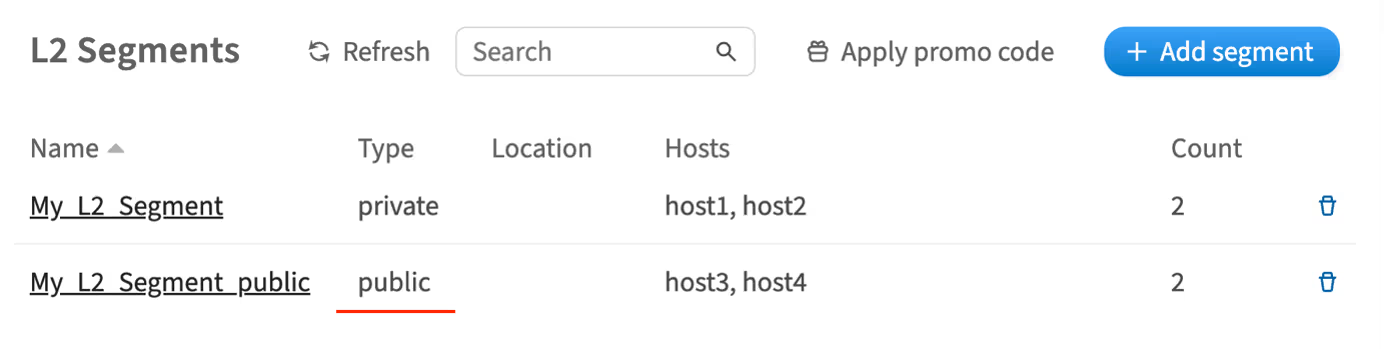
Select L2 segment with the public type
-
Scroll to the Alias IP count section
-
Use the "+" button to add the required number of alias IPs
Please note: the customer portal has a limit of creating no more than 64 alias IP addresses
-
Click Save
An alias IP will be added.
How to manage uplinks
Uplinks are physical or logical connections through which servers connect to public or private networks. Uplinks provide communication between the server and a larger network, whether it be the internet or a corporate network. Depending on speed and redundancy levels, uplinks can provide varying bandwidth and connection reliability.
Proper uplink configuration allows users to maximize the efficient use of network resources and ensure the stable operation of applications and services.
In the customer portal, you can view and manage the uplinks configurations. To do this:
-
Open the customer portal and navigate to Dedicated Server → Manage
-
Choose the server and click Details
-
Scroll to the Uplinks section and click Change
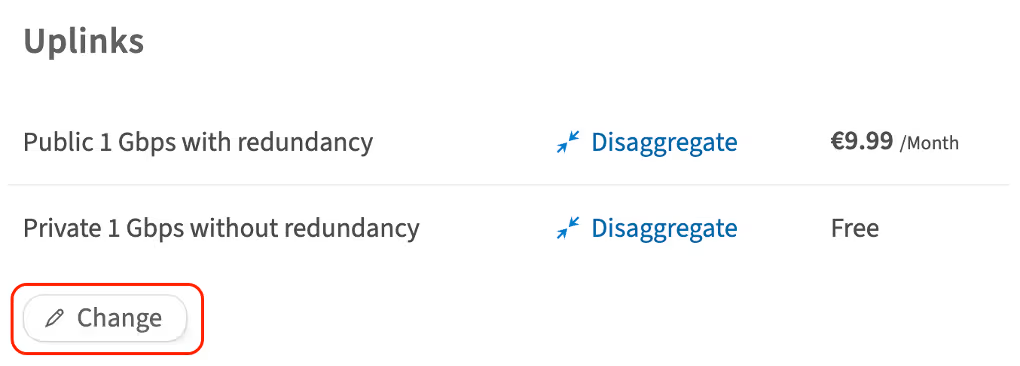
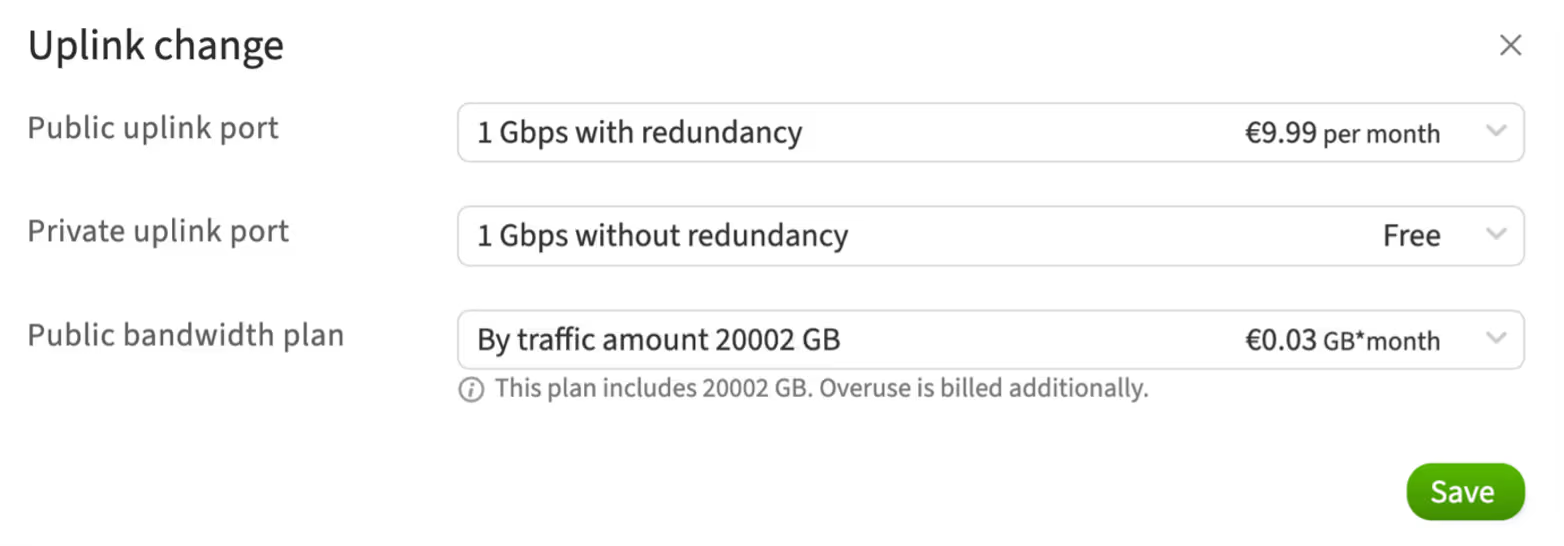
In the opened window, you can manage the following configurations:
Public uplink port
-
1 Gbps with redundancy: this is a public connection with a bandwidth of 1 gigabit per second
-
The "with redundancy" option means that there are two or more physical connections providing network or internet access. If one connection fails, traffic automatically switches to the backup connection, enhancing network reliability and fault tolerance
Private uplink port
-
1 Gbps without redundancy: this is a private connection with a bandwidth of 1 gigabit per second
-
The "without redundancy" option means that there is only one physical connection. If this connection fails, network or internet access will be lost until the issue is resolved. This option is provided for free
Public bandwidth plan
-
The public bandwidth plan determines the amount of data that can be transmitted through the public connection
-
For example, a plan with "By traffic amount 20002 GB" means the server can send and receive up to 20002 gigabytes of data during the billing period, which is one month. Exceeding this limit will incur additional charges at the rate of €0.03 per additional gigabyte
How to disaggregate an uplink port
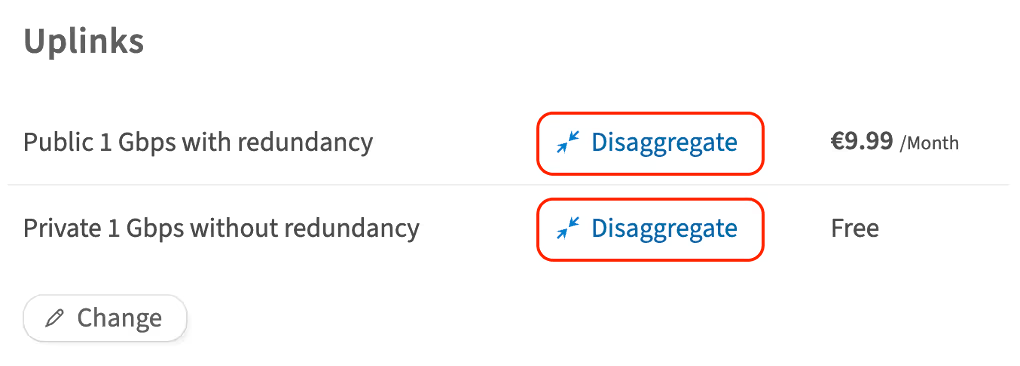
Disaggregating an uplink port means separating or altering the routing of traffic managed by that port. This process may be necessary to redistribute traffic load and enhance overall network performance.
To disaggregate an uplink port:
-
On the uplink configuration page, next to the required port, click Disaggregate
-
In an opened window, confirm your action by clicking Disaggregate
Please note, disaggregating will disable redundancy for the port if it was previously enabled. -
To confirm this action, enter your account password in the pop-up window and click Continue
Tagged trunks in an L2 segment
Introduction
The L2 segments service (also known as broadcast domains) allows the creation of virtualized layer 2 (L2) subnets or segments over an underlying layer 3 (L3) network. From the technical standpoint, an L2 segment is a set of VLANs interconnected using the VXLAN protocol. VLANs are provisioned per L2 segment, per server rack.
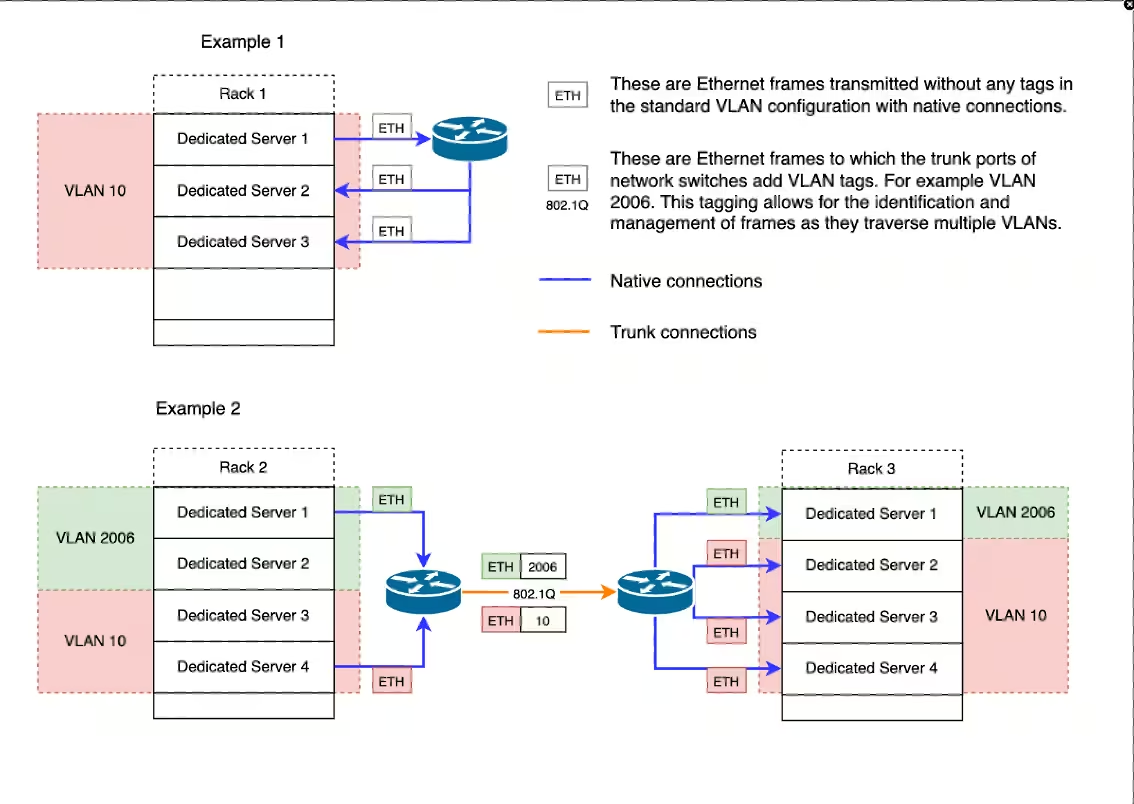
Example 1: All member servers of the L2 segment are located in the same server rack. A single VLAN is allocated for the L2 segment.
Example 2: The member servers of the L2 segment are located in two different server racks. A separate VLAN is allocated for the L2 segment in each rack, totalling two VLANs. VXLAN is configured to connect two VLANs. Different VLAN IDs are mapped to the same VXLAN VNI.
VLAN and VXLAN configurations are automatically applied after adding or removing servers in the L2 segment via the customer portal. Users only need to configure IEEE 802.1Q tagging on their servers when using tagged trunks. Details are provided in the following sections.
Connection types for connecting a dedicated server to an L2 segment
When connecting a server to a previously created L2 segment via the customer portal, you need to choose whether to connect the server using a trunk or a native connection. A single ethernet interface can simultaneously support:
-
One native connection, where ethernet frames are untagged
-
Multiple trunks, where ethernet frames are tagged
The differences between connection types are shown in the table:
|
Link type |
Description |
Requires OS configuration |
Number of VLANs per Ethernet interface |
|
Native |
This connection is used to transmit data over a single VLAN. The network switch treats all untagged traffic on the native connection as traffic with the default VLAN ID tag. |
No |
One |
|
Trunk |
This connection type is used to transmit data over multiple VLANs. Using a trunk connection requires configuring IEEE 802.1Q VLAN tagging in the server's operating system. The network switch removes the default VLAN ID tag from ethernet frames before sending them over the native connection. |
Yes |
Multiple |
How to configure tagged trunks
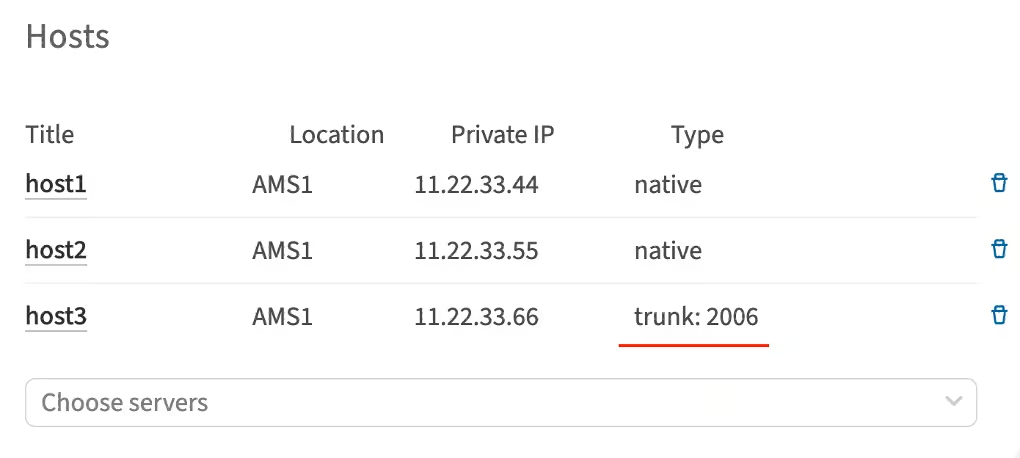
When adding a server to an L2 segment with a trunk type connection, proper network operation requires configuring IEEE 802.1Q tagging in the server's operating system. For this, you will need the VLAN ID number.
Getting VLAN ID for the server
You can find it in two places in the customer portal:
On the server details page:
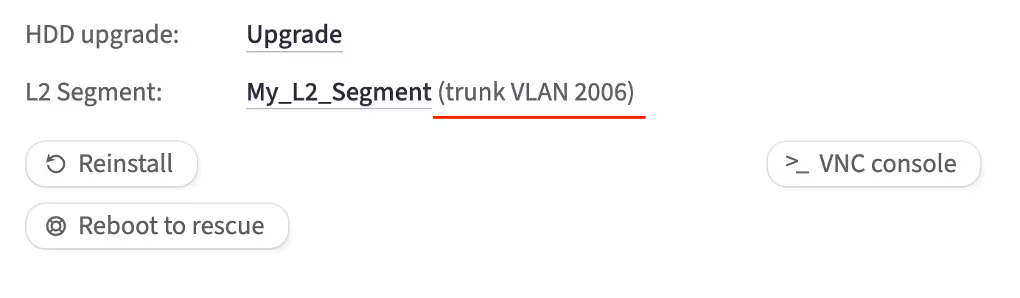
On the L2 segment details page:
Using the IP utility
The IP utility comes with most Linux distributions. To enable 802.1Q tagging on the aggi interface with a static IP address (for example, 172.16.0.1/16) and VLAN ID (for example, VLAN ID 2006), execute the following command:
ip link add link aggi name vlan2006 type vlan id 2006
ip address add 172.16.0.1/16 dev vlan2006
ip link set vlan2006 up
Using interface configuration files
To create a subinterface with 802.1Q tagging enabled, VLAN ID (e.g., VLAN ID 2006), and a static IP address (e.g., 172.16.0.1/16) on the ethernet interface aggi, follow the instructions provided below.
CentOS
-
Add a new configuration file:
/etc/sysconfig/network-scripts/ifcfg-aggi.2006Ensure that the file name follows the naming convention for VLAN interfaces described in the naming scheme for VLAN interfaces. -
Edit the file and add the following configuration:
ONBOOT=yes TYPE=Ethernet VLAN=yes DEVICE=aggi.2006 BOOTPROTO=static IPADDR=172.16.0.1 NETMASK=255.240.0.0 -
Restart the network service:
systemctl restart network
Ubuntu
-
Install the VLAN package:
apt update && apt install vlan -
Add configuration to the
/etc/network/interfacesfile:auto aggi.2006 iface aggi.2006 inet static address 172.16.0.1 netmask 255.240.0.0 vlan_raw_device aggi
Configuring tagged trunks on Windows Server 2012 R2 / 2016 / 2019
When a tagged VLAN is configured on the switches, to configure tagged trunks, you need to specify this VLAN on the server. To do this, complete the following steps:
-
Go to NIC teaming settings and navigate to the Teams section
-
Select the team group (in this case,
aggi) for which you need to create a VLAN interface -
In the Adapters and Interfaces section, click the drop-down list Tasks and select Add Interface
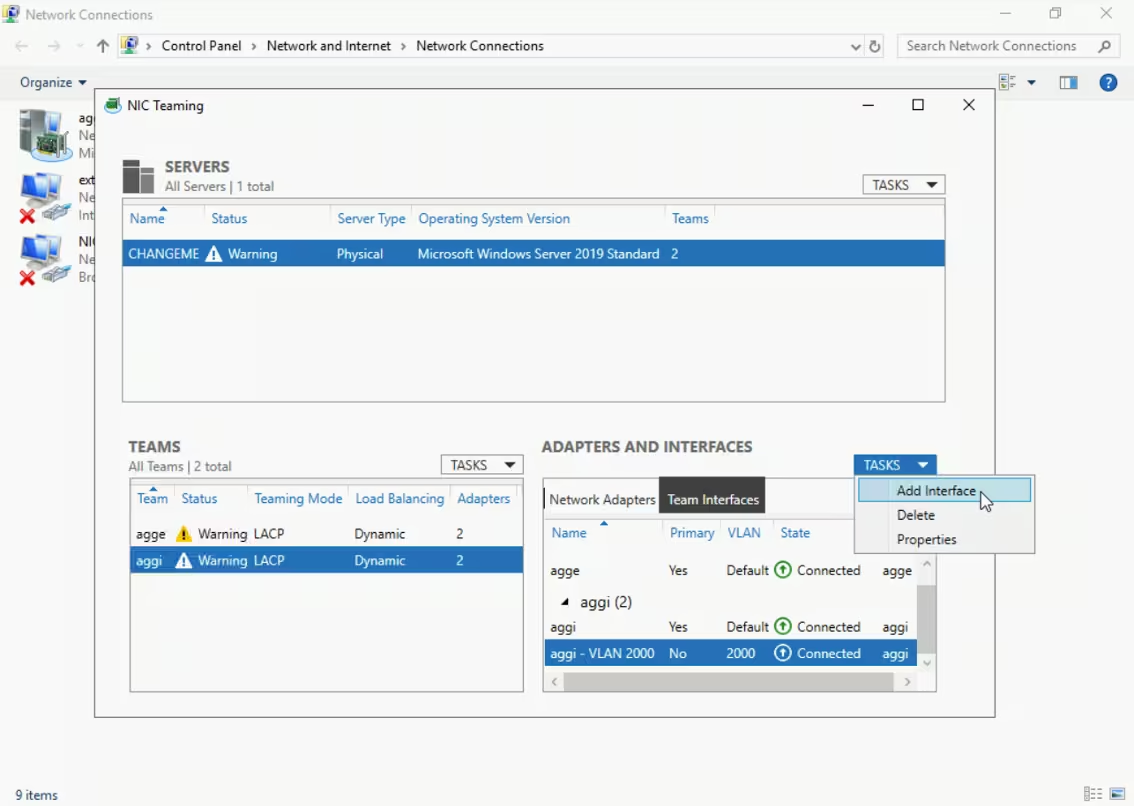
- Save the settings by clicking Apply, and then click OK
The VLAN interface will be created, and you can now configure the necessary network on it.
IP addressing
In the customer portal, you can order alias IPs and use them in the selected L2 segment, provided that the dedicated server is connected to this L2 segment through a native connection. This is because the alias IPs provided by servers.com are automatically configured for the default VLAN on the network switch port.
For a server connected to an L2 segment through a native connection, the default VLAN ID will be the VLAN ID of the L2 segment.
Alias IPs ordered for a server connected through a native connection can be used by all other members of the L2 segment, relying on the ARP protocol within the L2 segment.
Billing and limits for additional networks and alias IP
|
Service |
Billing type |
Proportional tariffication |
Notes |
Limits (available quantity for order via customer portal per one dedicated server |
|
Additional IPv4 Networks |
Pre-paid |
Prorated by days |
All IP addresses in the network are billed, not just the usable ones. |
No more than 2 public networks: one main public network + one additional network. No more than 2 private networks: one main private network + one additional network. No more than 72 public IP addresses. No more than 72 private addresses in networks. |
|
Additional IPv6 Networks |
Pre-paid |
Monthly cost, regardless of the number of days used |
The network cost is fixed and does not depend on the number of addresses. |
Only one /64 IPv6 network. |
|
Alias IP |
Pre-paid |
Prorated by days |
No more than 64 alias IPs. |
|
|
Uplink (with redundancy) |
Pre-paid |
Prorated by days |
Only one public port and one private port. |
Traffic billing
Traffic within the private network is free of charge, including traffic between servers located in different data centers. Incoming traffic is also free and unlimited.
Only outgoing traffic on the public network is billed, regardless of whether the primary, additional public network, or alias IP was used. Traffic overuse is calculated based on the rate.
To monitor traffic expenses, keep an eye on the traffic usage statistics on the server page in the customer portal under the sections traffic usage summary and traffic usage.
Do not ignore notifications about traffic consumption. The customer portal sends automatic notifications to the primary and technical contacts when 50%, 80%, and 100% of the traffic package has been consumed.


